How instructors use it
From the next briefing to a useful lesson record.
CFI Desk is built around the work of an individual instructor. These examples show where the current tools fit into a normal teaching day.
Before the lesson
Pick up where the last flight left off.
Review the student’s history before deciding what to cover next.
For example
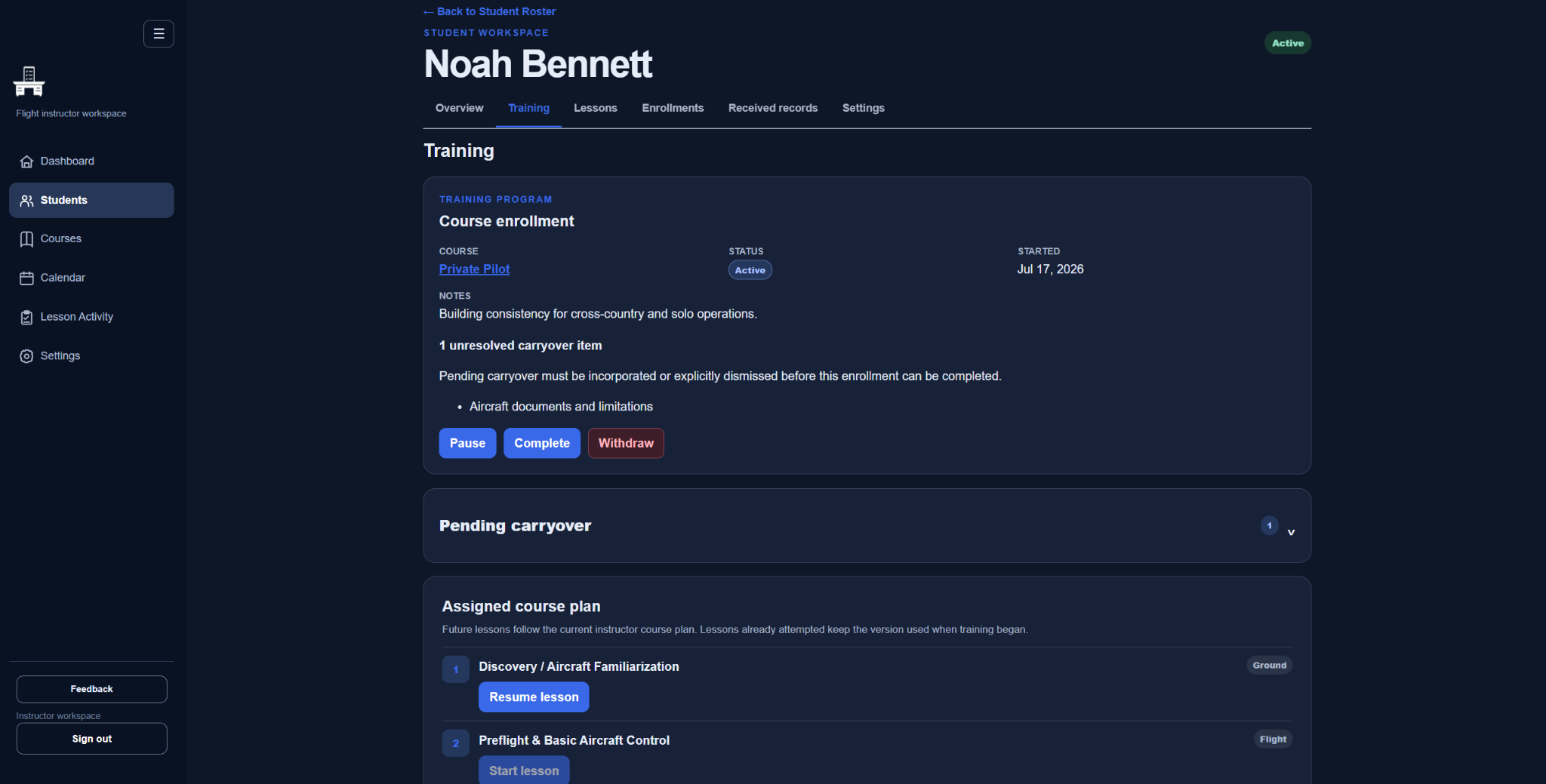
A student struggled with crosswind landings last time. Open the prior lesson, review your notes, and bring relevant carryover items into the next attempt.
- Keep students connected to their courses and lesson sequence.
- Review past evaluations and notes alongside the next training objective.
- Select relevant carryover items when starting the next lesson.
The instructor decides what training is appropriate and whether the student meets the applicable standard.
During the lesson
Keep the next item easy to find.
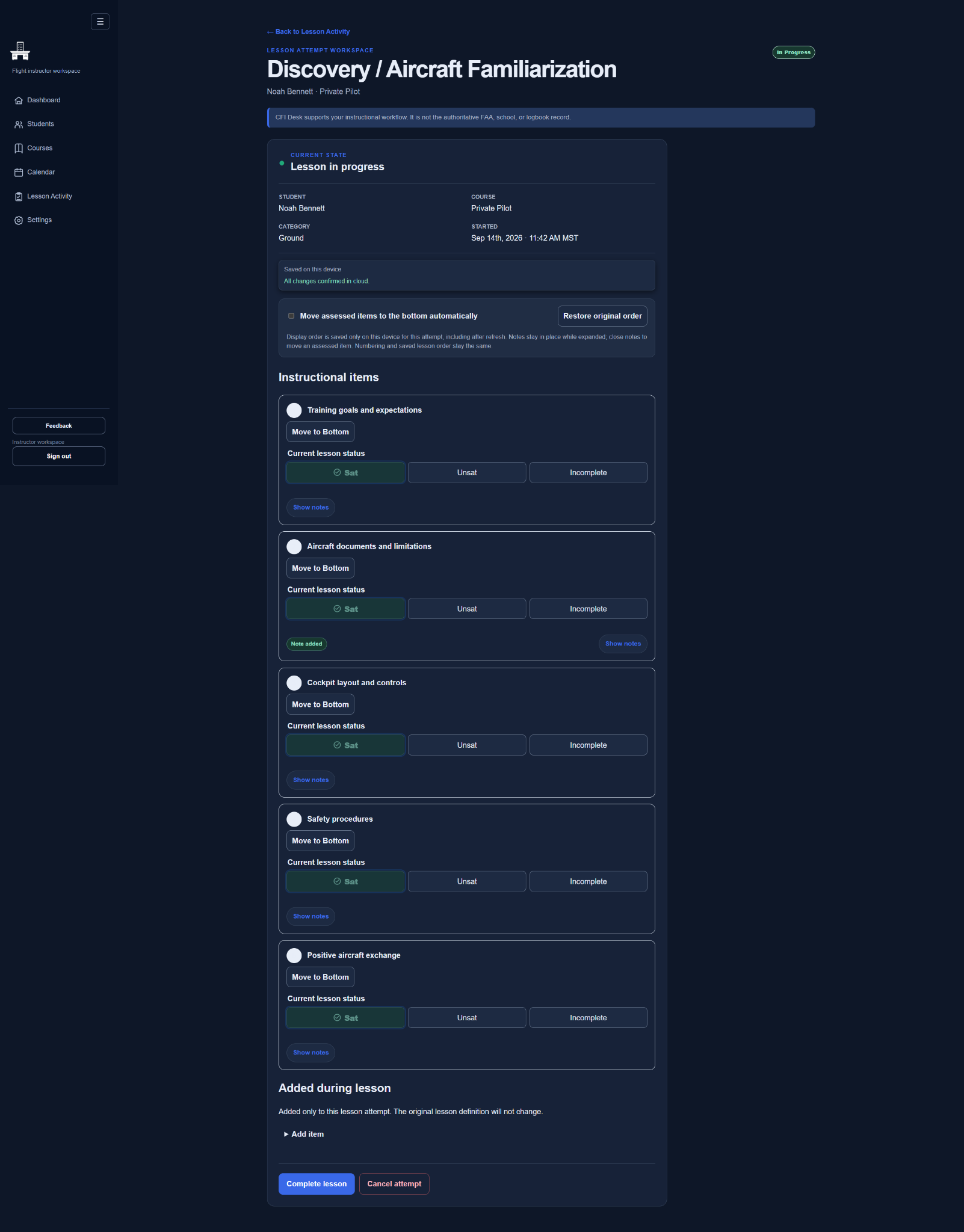
Assess individual instructional items while the details are fresh.
For example
During a flight, mark an item SAT, UNSAT, or INCOMPLETE and add a note where it is needed. The optional display setting moves assessed items to the bottom so the remaining work is easier to see.
- Use the lesson’s instructional items as a working reference.
- Record evaluations and item notes in the active lesson.
- Continue supported lesson tasks offline when connectivity is unreliable.
Moving items changes the display for that attempt on that device. It does not rewrite the saved lesson sequence. Offline support covers selected lesson tasks, not the whole application.
Between lessons
See progress across repeated attempts.
Keep a useful record of what happened, including work that needs another try.
For example
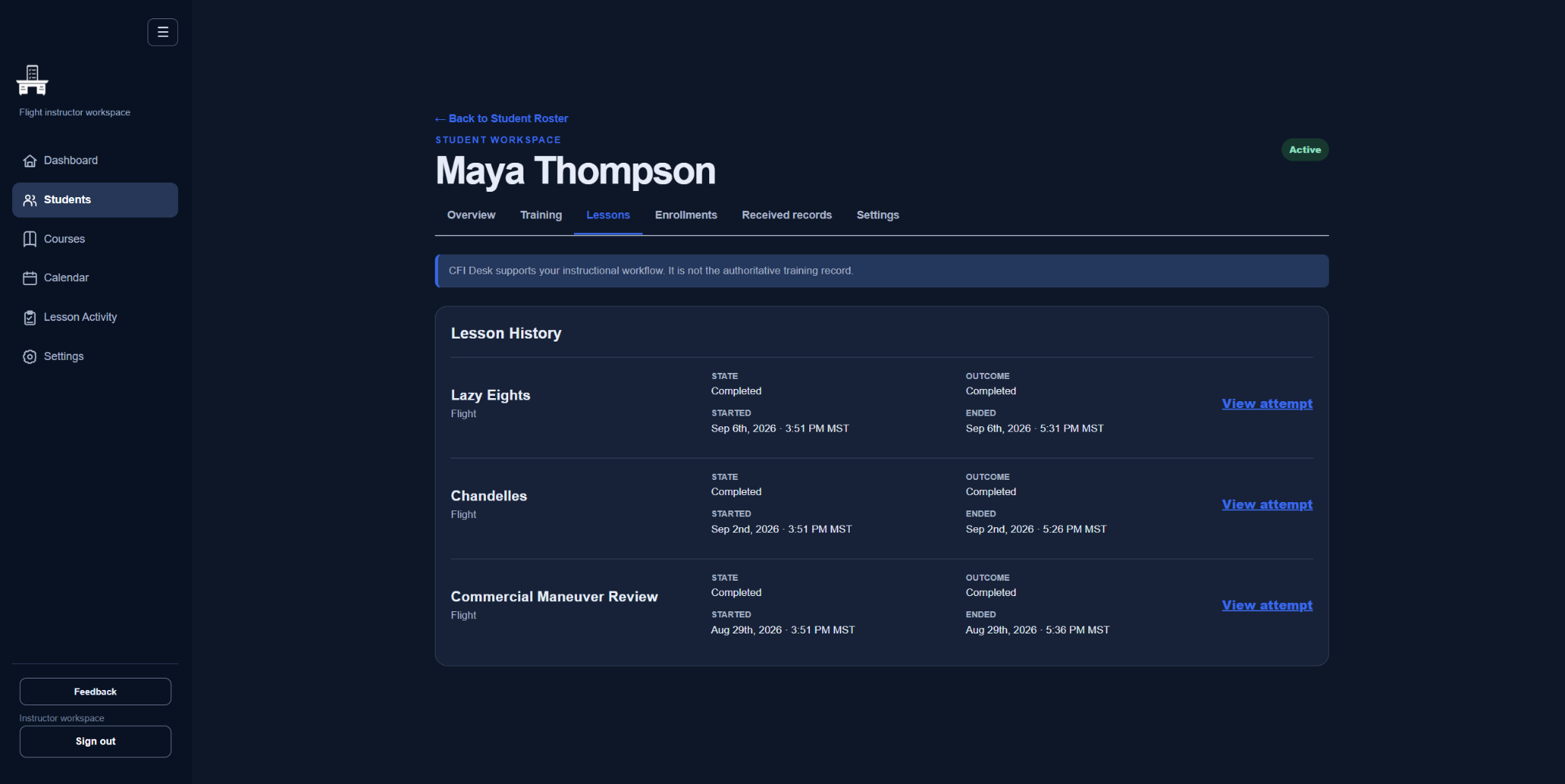
A student repeats the same lesson over several flights. Review the earlier attempts before the next briefing instead of treating each flight as an isolated note.
- Review the lesson attempts associated with a student’s training.
- Use recorded evaluations and notes to identify follow-up work.
- Keep completed history available when planning the next lesson.
CFI Desk is a training workspace. Its lesson records do not replace required pilot logbook entries or endorsements.
Plan the training day
Connect the appointment to the lesson.
Schedule training with the student and lesson context close at hand.
For example
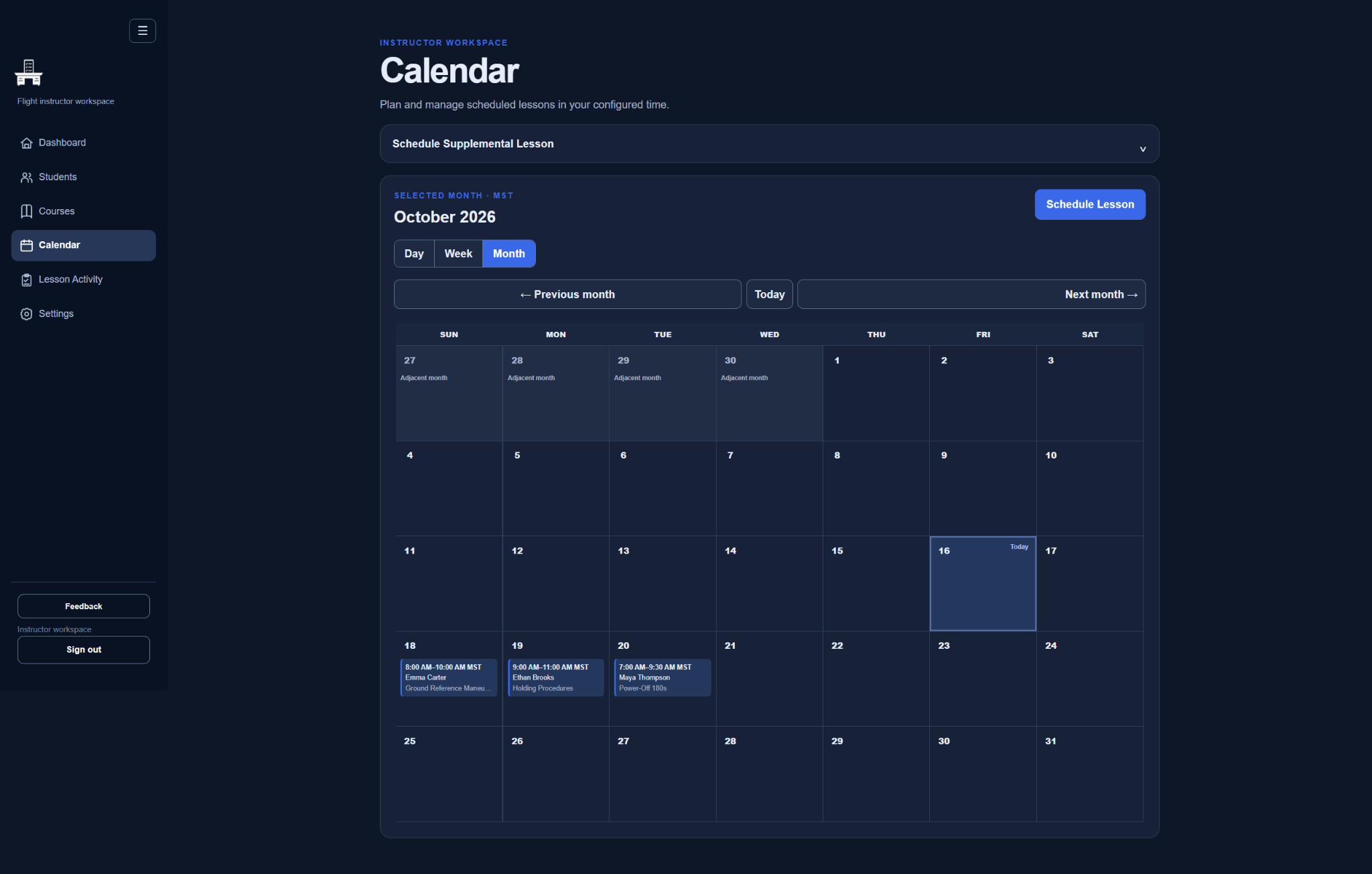
Put a simulator lesson on the calendar, review its carryover items, then start the lesson from the scheduled appointment. A linked lesson record lets you return to the work afterward.
- View scheduled training in day, week, or month views.
- Start eligible scheduled lessons from the calendar.
- Record a scheduling cancellation and its reason when plans change.
The calendar organizes your instructional workflow. It is not an aircraft-dispatch or rental-booking system.
For independent instruction
Know what you charged and what was recorded as paid.
Keep instructional time and payment records connected to your work.
For example
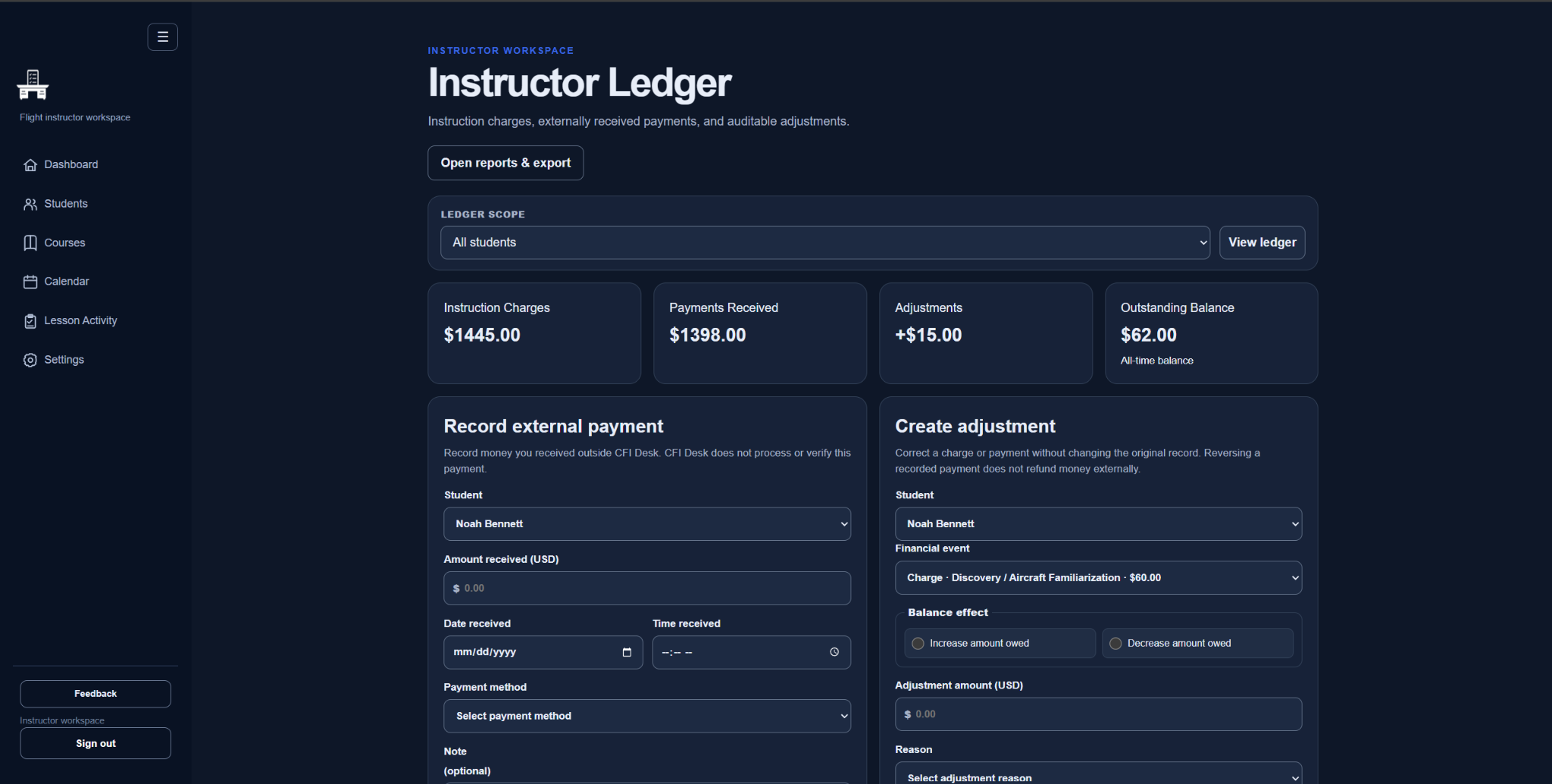
After a flight lesson, enter the actual flight-instruction and ground-instruction time. Record an external payment when you receive it, then review the student’s remaining balance in the ledger.
- Enable optional Instruction Billing and set instructional rates.
- Record actual billable time in tenths of an hour at completion.
- Record partial payments and auditable corrections, then review balances.
CFI Desk does not collect or verify student payments. Aircraft rental, fuel, and third-party fees are outside Instruction Billing.
Keep students informed
Share a view of the training record.
Give authorized students or guardians read-only access to the records shared with them.
For example
An adult student wants to review the previous lesson before the next flight. With authorized Student View access, they can review shared training information without editing your records.
- Invite an adult student or an eligible minor student’s guardian.
- Keep the instructor in control of training-record edits.
- Show relevant billing information when Instruction Billing and access are enabled.
Student View requires an invitation and an internet connection. Students ages 14–17 use guardian-managed access; they do not own accounts.
Explore the current product
Start with the parts you need.
Use the student and lesson tools as your foundation. Enable Instruction Billing when it fits your work, and invite students or guardians when you want to share a read-only view.
Spend less time piecing together student progress.
Free beta for U.S. flight instructors, age 18 and older.
Email verification and approval are required. No payment details needed.